Moving around
In a pane
| Key | Does |
|---|---|
Up, Down, PageUp, PageDown, Home, End |
move the cursor |
Enter |
opens a folder or an archive, or the file with its app |
Right |
enters the folder under the cursor |
Left, Backspace |
goes to the folder above |
⌘\ / Ctrl+\ |
goes to the top of the drive |
⌥Left, ⌥Right / Alt+Left, Alt+Right |
back and forward |
⌘R / Ctrl+R |
reads the folder again |
⇧⌘. / Ctrl+Shift+. |
shows or hides hidden files |
⇧⌘O / Ctrl+Shift+O |
shows this folder in the other pane too |
⇧⌘Right / Ctrl+Shift+Right |
opens the folder under the cursor in the other pane |
A click on a column header sorts by it; a second click reverses the order. ⌃F3 to ⌃F6 (Ctrl+F3 to Ctrl+F6) sort by name, extension, date and size. Folders stay on top.
Quick search
Just start typing: the cursor jumps to the first name that starts with what you typed. Backspace removes the last letter, Esc ends the search.
Go to anything
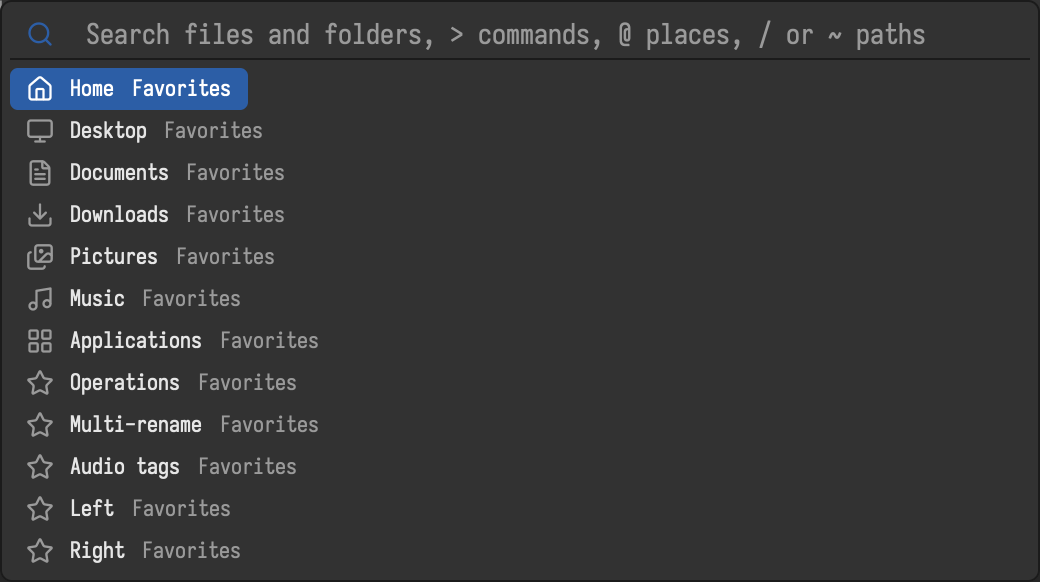
⌘P / Ctrl+P opens a search over the folders and files below the active folder, your favorites, drives and recent folders. Type a few letters of a name, even with gaps (dlrep finds downloads/report.pdf); Enter goes there.
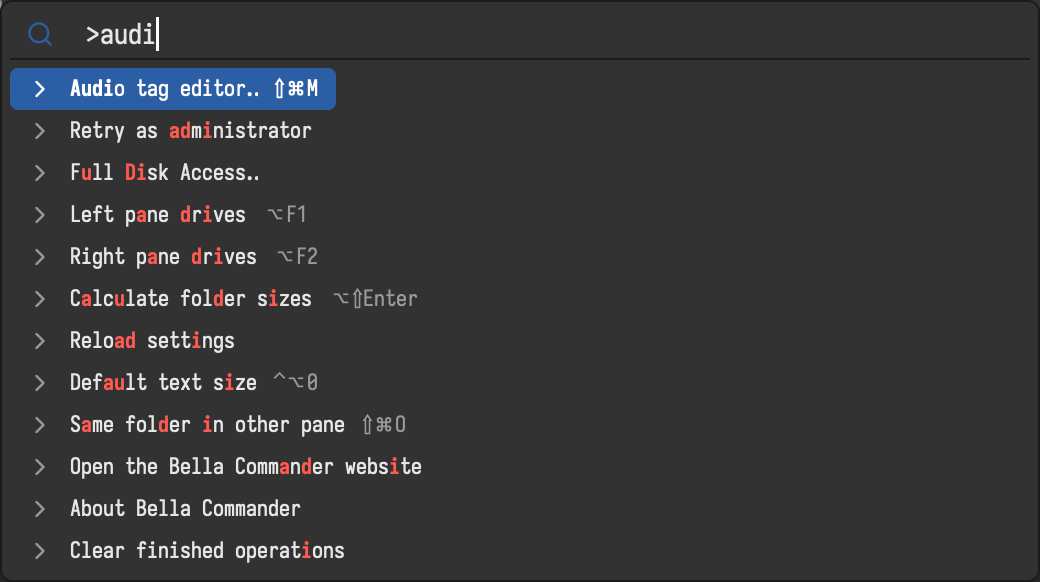
Typing > first, or ⇧⌘P / Ctrl+Shift+P, searches the commands instead: the command palette lists every command with its key.
Favorites
⇧⌘B / Ctrl+Shift+B adds the current folder to the favorites in the sidebar, or removes it. ⌘1 to ⌘9 (Ctrl+1 to Ctrl+9) open the first nine. Favorites can be grouped in folders; edit them in favorites.toml (Edit favorites in the command palette), see Customize.
Recent folders and drives
The sidebar lists the folders you visited last; ⌥⌘1 to ⌥⌘9 (Windows, Linux: Ctrl+Shift+1 to Ctrl+Shift+9) open them. Drives and network shares mounted by the system are listed under Drives; ⌘E / Ctrl+E ejects the drive the active folder is on.
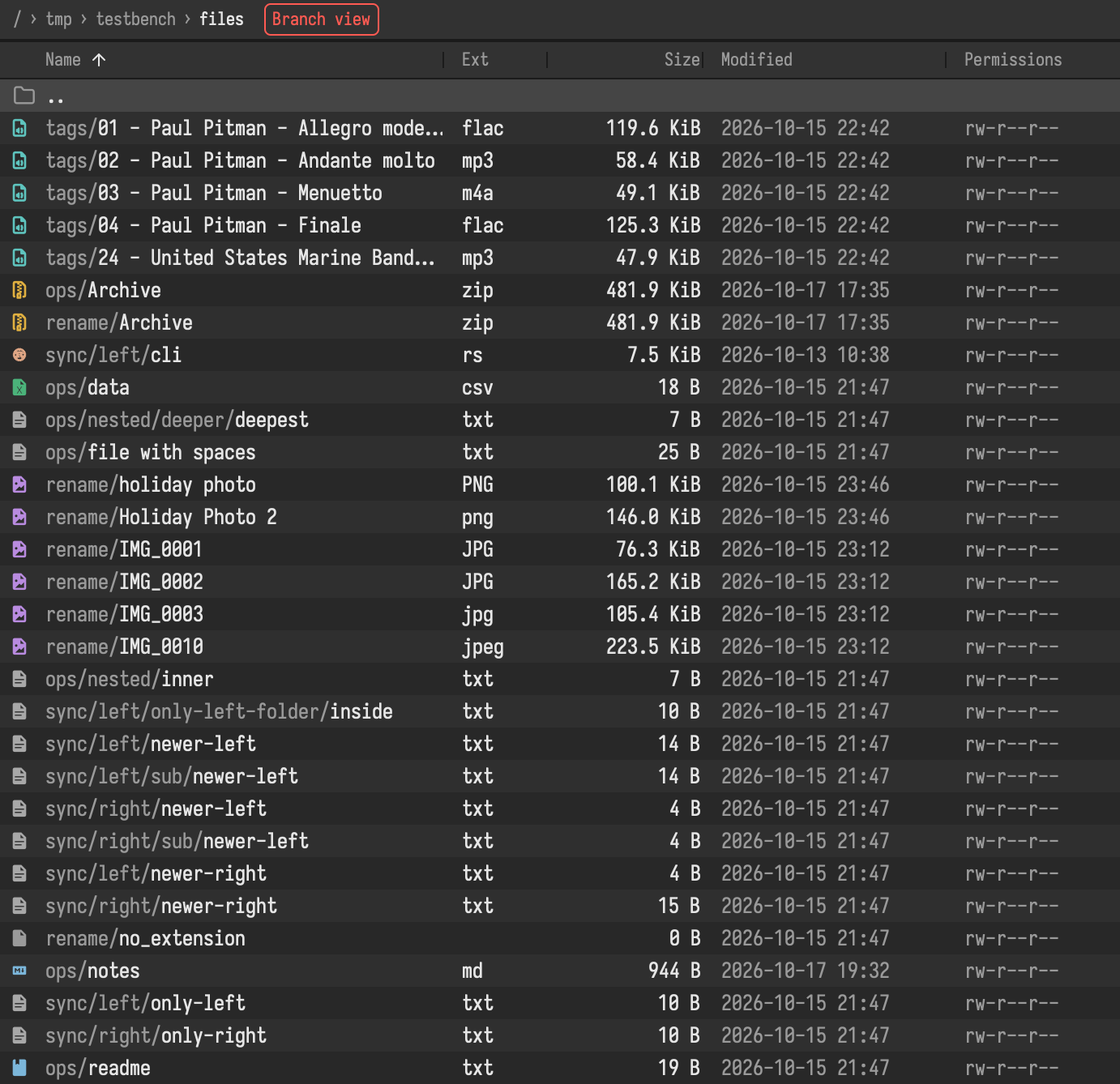
Branch view
⌃B / Ctrl+B lists the files of all subfolders in one flat list, each name with its folder below the current one. Copy, move, delete, view and rename work on these files where they are. ⌃B again, or going up, ends it.