Audio tag editor
Part of Bella Commander Full.
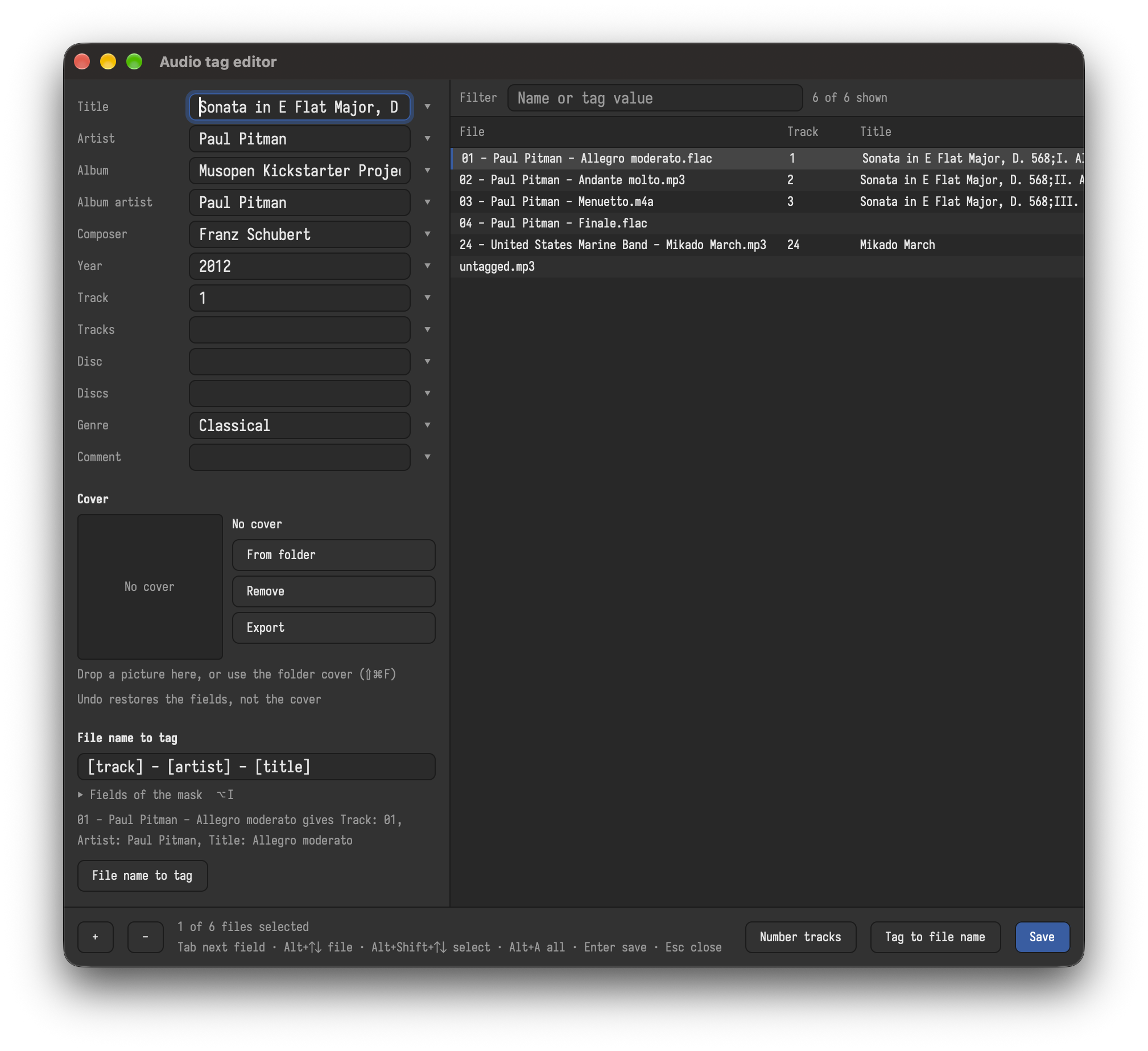
⇧⌘M / Ctrl+Shift+M edits the tags of audio files (title, artist, album, track, year, genre, cover, ...), like Mp3tag. It opens its own window with the selected files; more can be dropped into it. Other files in the selection or the drop are left out.
Supported files
| Format | Files | Tag it writes |
|---|---|---|
| MP3 | .mp3 |
ID3v2 |
| FLAC | .flac |
Vorbis comments |
| Ogg Vorbis, Opus | .ogg .oga .opus |
Vorbis comments |
| MPEG-4 audio, audio books | .m4a .m4b |
MP4 tags |
| AAC | .aac |
ID3v2 |
| WAV, AIFF | .wav .aif .aiff |
ID3v2 |
| WavPack, Monkey's Audio, Musepack | .wv .ape .mpc |
APE tags |
All of them are read and written, the cover included. The editor reads a file's main tag (the column above), or the first other one it has, and saves into the main tag: a file with only an old ID3v1 tag gets an ID3v2 tag when saved.
The list
All files with a column per tag. A click on a column header sorts by it; headers can be dragged to reorder the columns. ⌘F / Ctrl+F filters by a text in the name or any tag. Changed values show in another color until they are saved.
Editing
The fields on the left edit the selected files. Where their values differ, a field shows <keep>: leave it, and each file keeps its value; type something, and all get it.
Each field has a list of values (its ▾ button, or F4 in the field): <keep>, <blank> (clears the field), then the values the selected files have. Arrows and Enter choose.
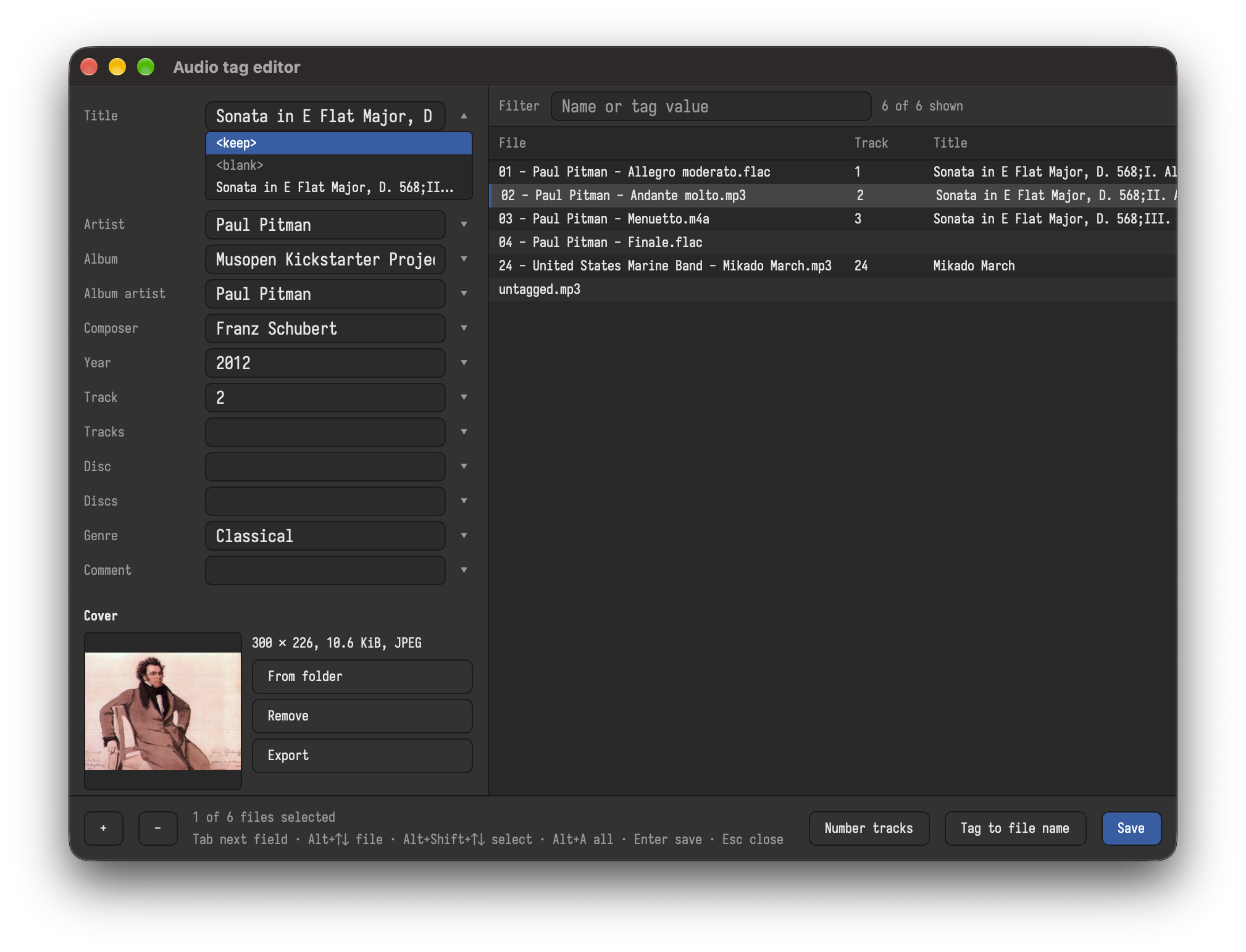
Cover: drop a picture on the window, or take the folder's cover.jpg, folder.jpg or front.jpg (⇧⌘F / Ctrl+Shift+F). It can also be removed or saved next to the file.
Enter or ⌘S / Ctrl+S saves the tags; ⌘Z / Ctrl+Z in the main window brings the old values back (not the cover).
File name to tag, tag to file name
File name to tag (⌥F / Alt+F) reads tags out of the file names with a mask like [track] - [artist] - [title]; [skip] passes over a part. Below the mask, the first five selected files show what the mask reads, or that the name does not fit. F1 lists the placeholders; a click inserts one.
Tag to file name (⌥R / Alt+R) opens multi-rename with the files, where [artist] - [title] names them after their tags.
⌥N / Alt+N numbers the tracks in list order.