Synchronize folders
Part of Bella Commander Full.
⇧⌘S / Ctrl+Shift+S compares the folders of the two panes and makes them the same, in both directions or as a backup of one side. With files selected in the active pane, only those are compared.
Comparing
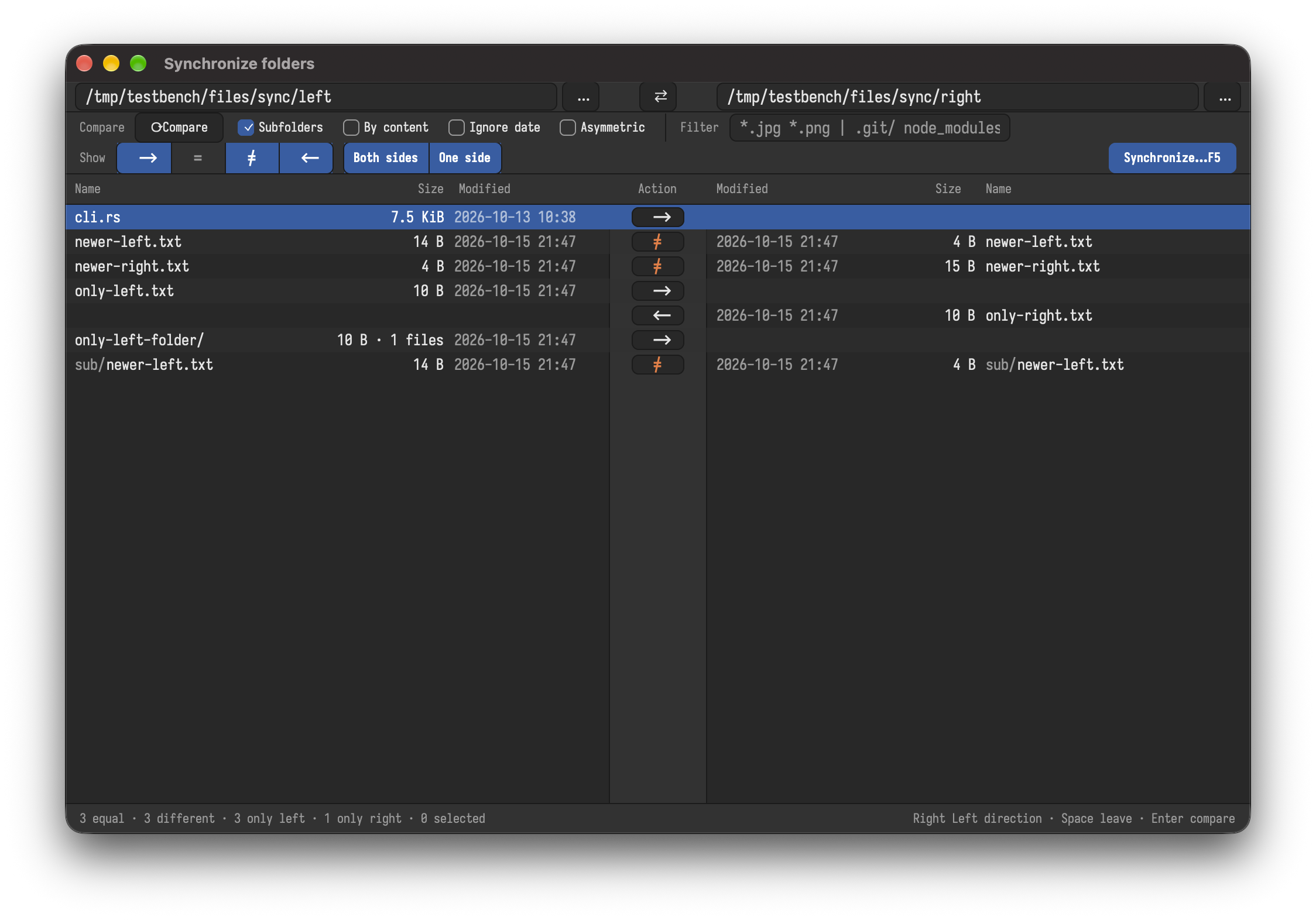
Each side shows its folder; ⌥L / Alt+L and ⌥R / Alt+R change it, ⌃U / Ctrl+U swaps them. The options, remembered for next time:
| Option | Key | Does |
|---|---|---|
| Subfolders | ⌥S / Alt+S |
compares the folders inside too |
| Compare content | ⌥C / Alt+C |
files of the same size are compared byte by byte; equal content counts as equal, whatever the dates |
| Ignore dates | ⌥D / Alt+D |
only size (and content) count |
| Asymmetric | ⌥A / Alt+A |
the right side becomes a copy of the left: what is only on the right is deleted (for backups) |
| Filter | ⌘F / Ctrl+F |
include \| exclude, like *.jpg *.png \| .git/ node_modules/ |
Dates within 2 seconds count as the same (memory cards, network drives), and names that differ only in how a system stores accents or in case are paired.
The list
Each row shows the file on both sides and, between them, what will happen: → copy to the right, ← copy to the left, = equal, ≠ different (left as is), ✕ delete on that side. The buttons 1 to 6 show or hide each kind.
| Key | Does |
|---|---|
Right, Left |
copy that way |
Space |
leave as is |
Delete, Backspace |
delete on the side that has it |
Enter |
compares the two files side by side |
F3 |
views the file |
A click on the arrow between the sides changes it too. Selected rows (⇧Up, ⇧Down, ⌘A / Ctrl+A) change together.
Synchronizing
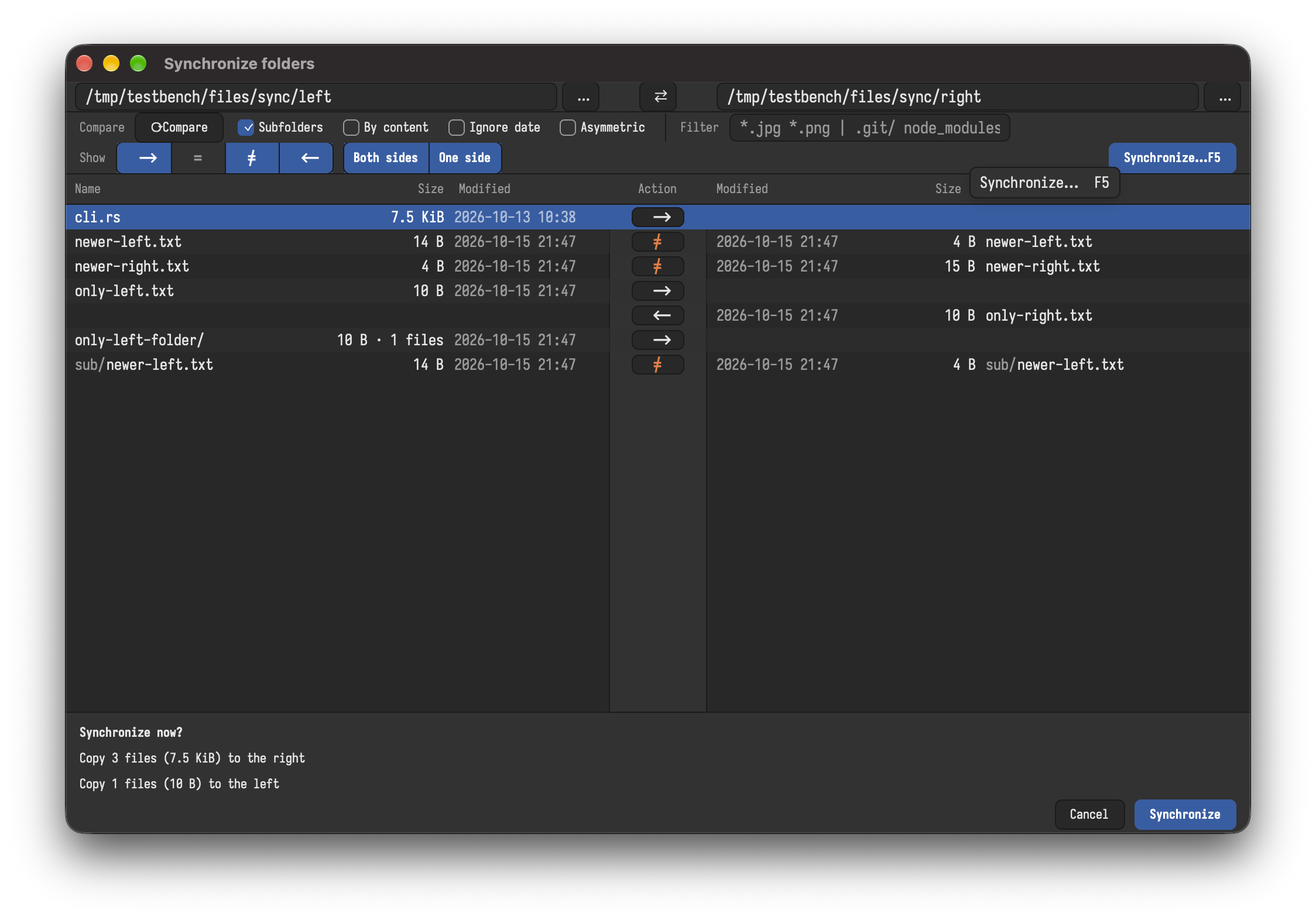
F5 or ⌘Enter / Ctrl+Enter shows how many files and bytes go each way and what is deleted, then Enter starts. Deleted files go to the trash unless you switch it off (⌥T / Alt+T). Each file is copied to a temporary name first and renamed at the end, so a failed copy never destroys the old version. Afterwards the folders are compared again.