The window
Two panes
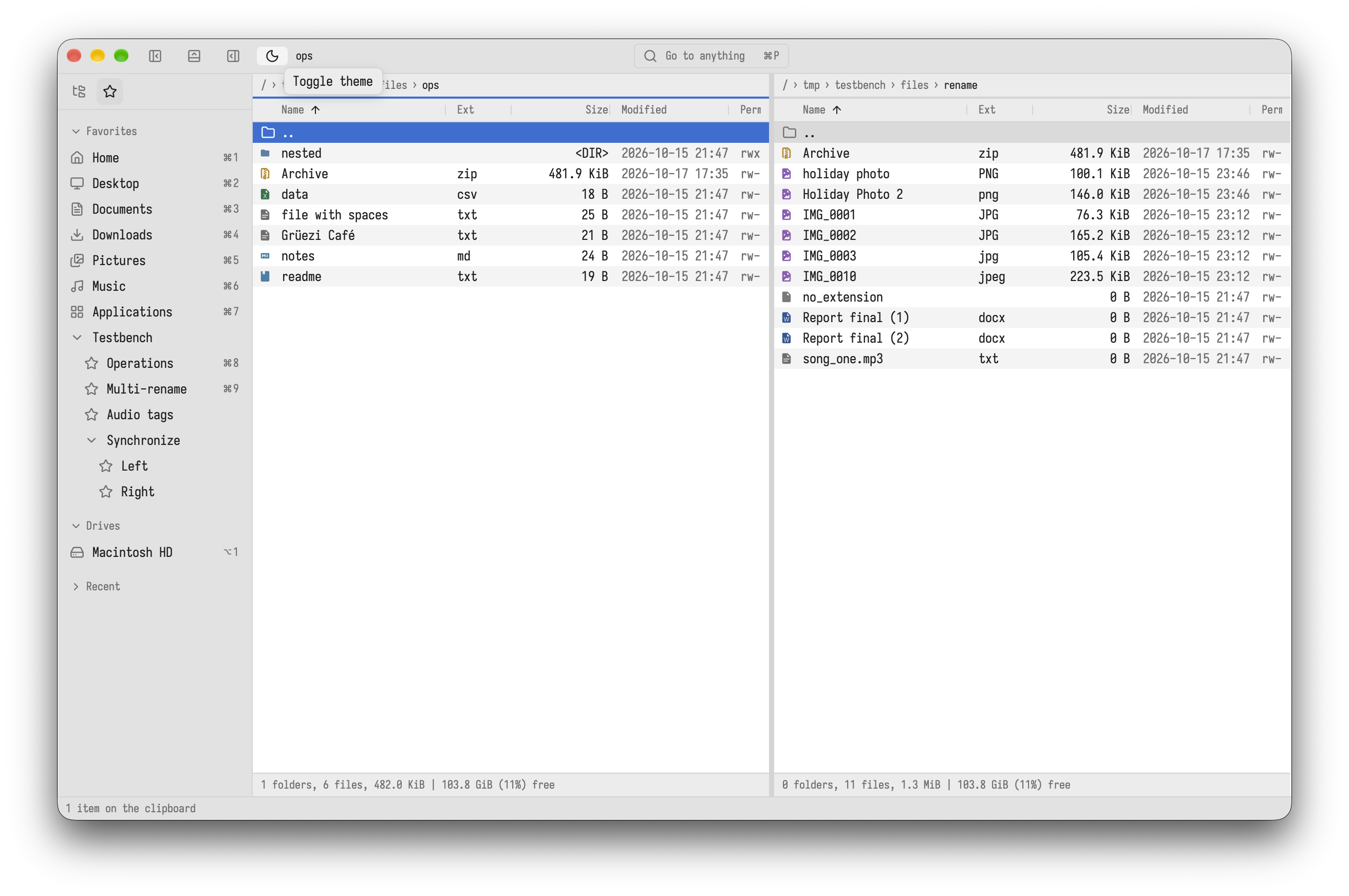
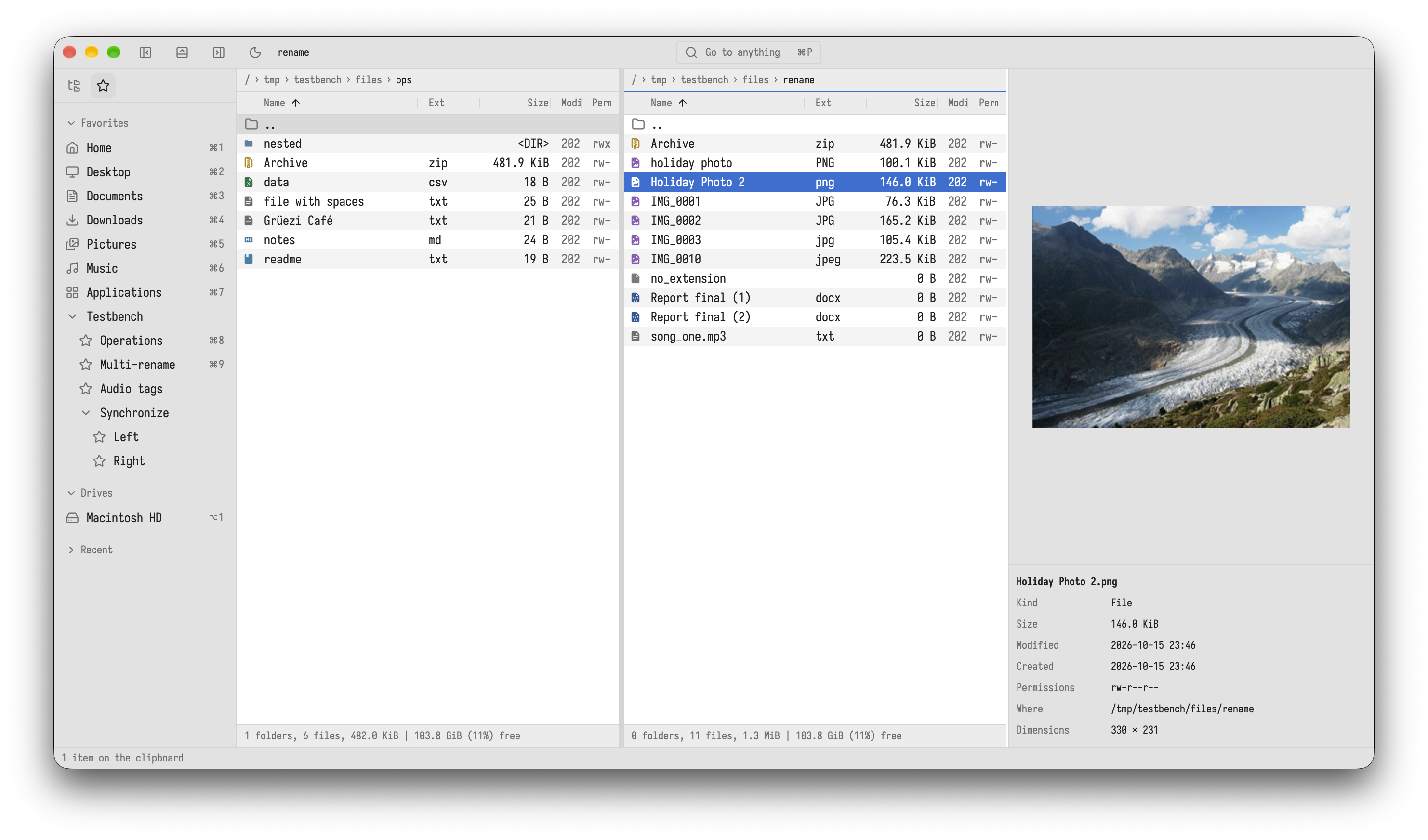
The window has two file panes. The active pane has the cursor; Tab moves to the next area (the other pane, the sidebar, the terminal), and a click on a pane makes it active. Most commands work on the active pane and use the other one as the target: F5 copies from the active pane into the other one.
⌥⌘Left/⌥⌘Right(Windows, Linux: the same withCtrl+Alt) move the divider, or drag it with the mouse.⌥⌘0/Ctrl+Alt+Downsets both panes to the same width again.⌥⌘M/Ctrl+Alt+Upgives the active pane the whole width, and back.- Stack panes in the command palette puts them on top of each other.
⌃U/Ctrl+Uswaps the two panes.
Tabs
Each pane has its own tabs. ⌘T / Ctrl+T opens a new tab, ⌘W / Ctrl+W closes it, ⇧⌘T / Ctrl+Shift+T reopens the last closed one, ⌃Tab and ⌃⇧Tab (Windows, Linux: Ctrl+Tab, Ctrl+Shift+Tab) move between tabs. Tabs can be dragged to another place or into the other pane. Each tab keeps its own sort order and hidden-files setting, and all tabs come back at the next start.
Path bar and status line
Above each pane, the path bar shows the folder as clickable parts. ⌘L / Ctrl+L, or a click into the free space, turns it into a text field: type a path (~ is your home folder), Tab completes it, Enter goes there.
Below each pane, the status line shows how many files and folders there are, their size, what is selected, and the free space of the drive. Messages (an error, a hint) show there too.
Sidebar
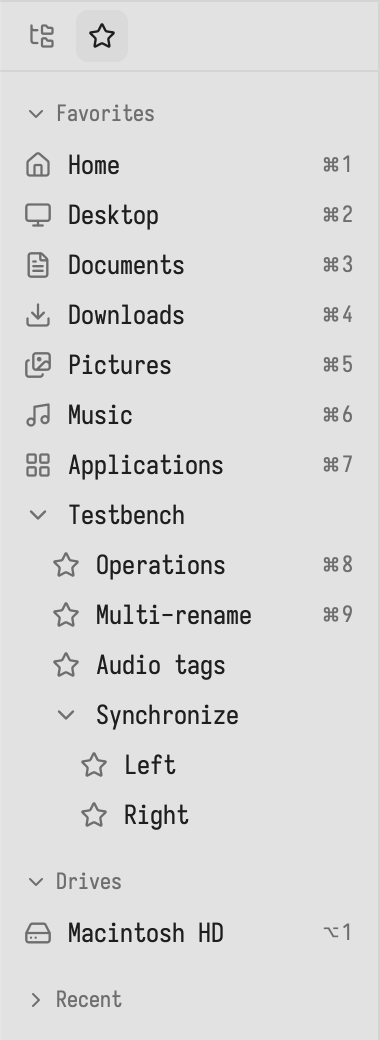
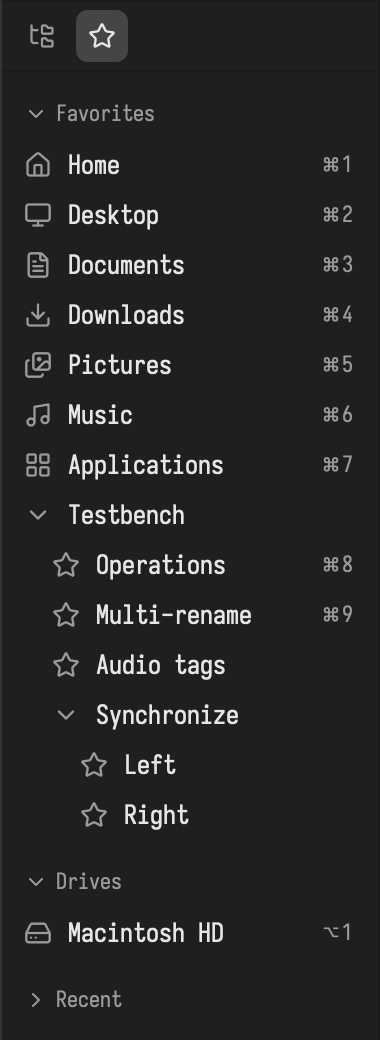
The sidebar on the left (⌘B / Alt+B shows or hides it) has two views, switched with the two buttons on top or ⇧⌘E / Ctrl+Shift+E:
- Places: your favorites, the drives and the recent folders. A favorite shows a symbol for well-known folders (home, desktop, documents, downloads, applications, cloud drives) and a star otherwise.
- Folders: a folder tree that follows the active pane.
Preview panel
⌥⌘B / Ctrl+Alt+B opens a panel on the right that shows the file under the cursor: text, images with their size and photo data, PDF pages, audio tags with the cover, folder contents, and the details below.
Terminal
⌘J / Ctrl+J shows a terminal below the panes and gives it the keyboard; the shell starts in the active pane's folder and follows it. See Terminal.
Operations
Copying, moving, deleting and the other file operations run in the background. While one runs, the top right corner shows its progress; ⇧⌘J / Ctrl+Shift+J or a click opens the list of operations, where each can be cancelled. See Working with files.
Light, dark and text size
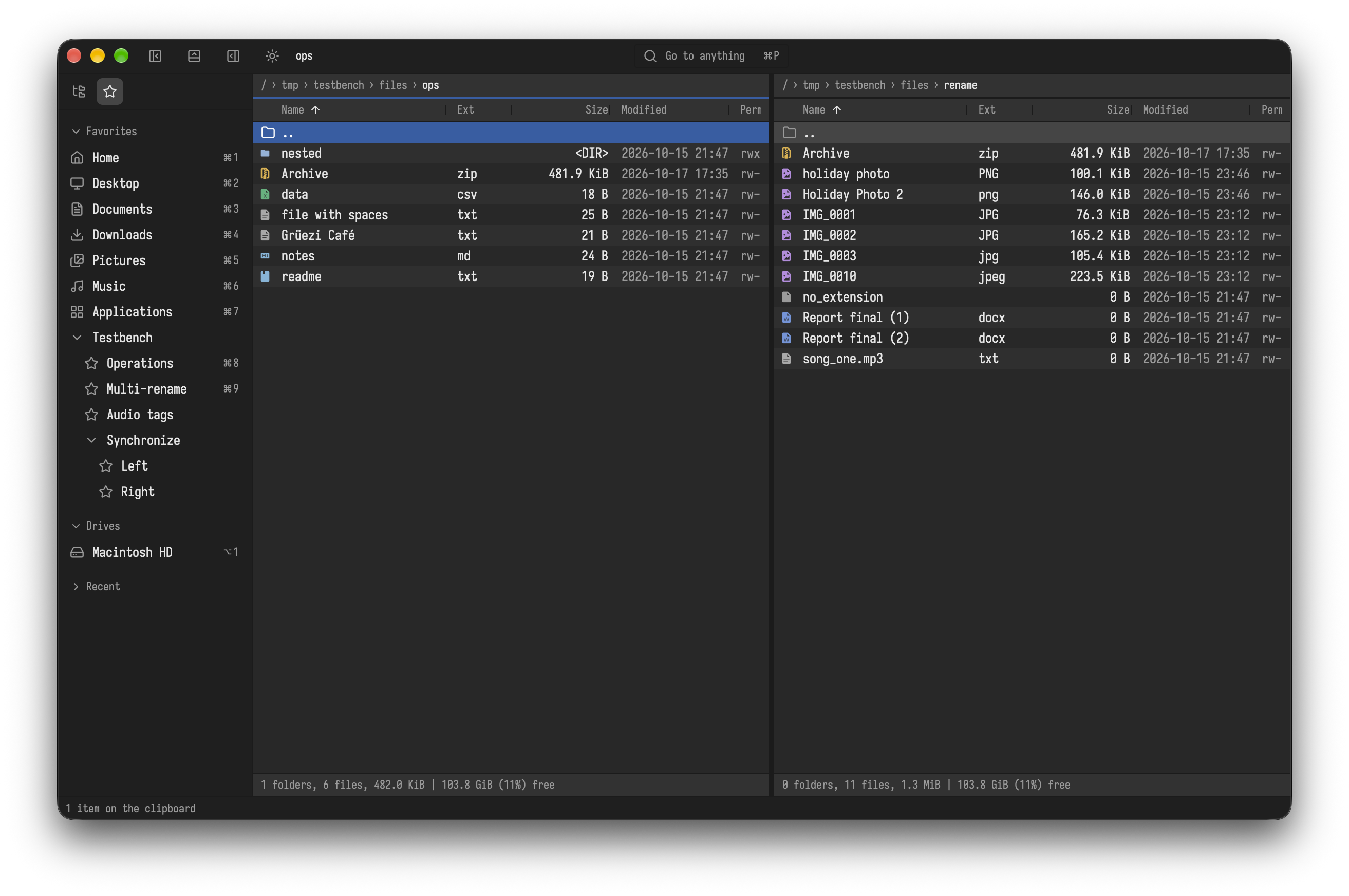
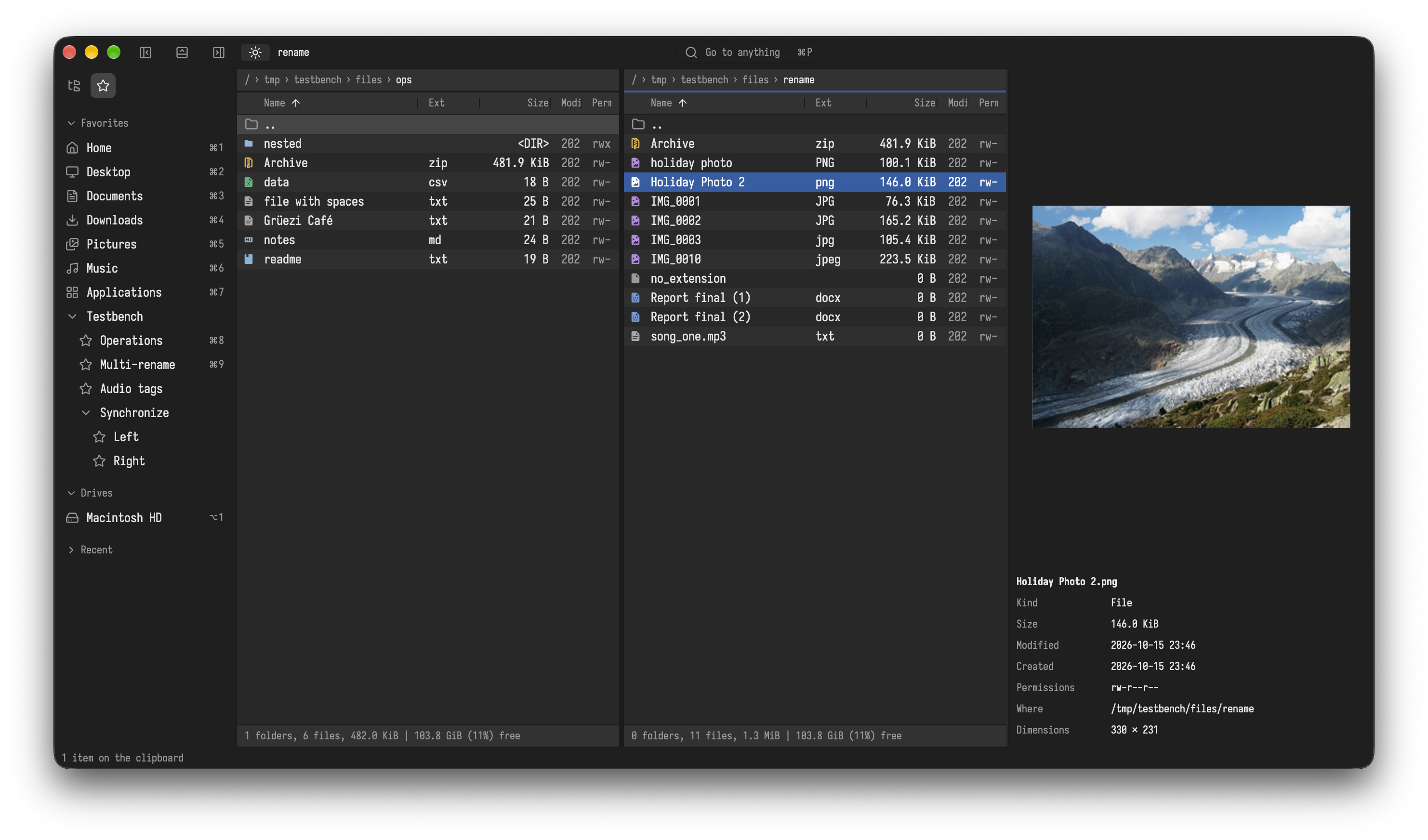
Bella Commander follows the light or dark mode of the system; Toggle theme in the command palette switches. ⌃⌥9 and ⌃⌥8 make the text bigger and smaller, ⌃⌥0 sets it back (Windows, Linux: Ctrl+=, Ctrl+-, Ctrl+0). Both are saved in settings.toml.